



Zendesk Attachment Access
This page covers how to access an email attachment sent from the UW/FHCC Zendesk Ticketing System. Emails sent from Zendesk show a 6 digit ticket reference number at the top of the email. Secure attachments are sent in one of two ways, please refer to the section that matches the attachment you received.
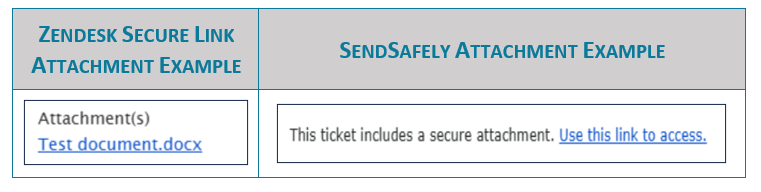
Zendesk Secure Link Attachments
These links are generally used when sending a message to a recipient with a UW or FH email address. You will need to log in to Zendesk to access these files. This can be done with a UW or Fred Hutch email address through SSO or by creating a new Zendesk account
- Click on the hyperlink matching the attachment you want to access. Log in using one of the processes outlined below.
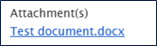
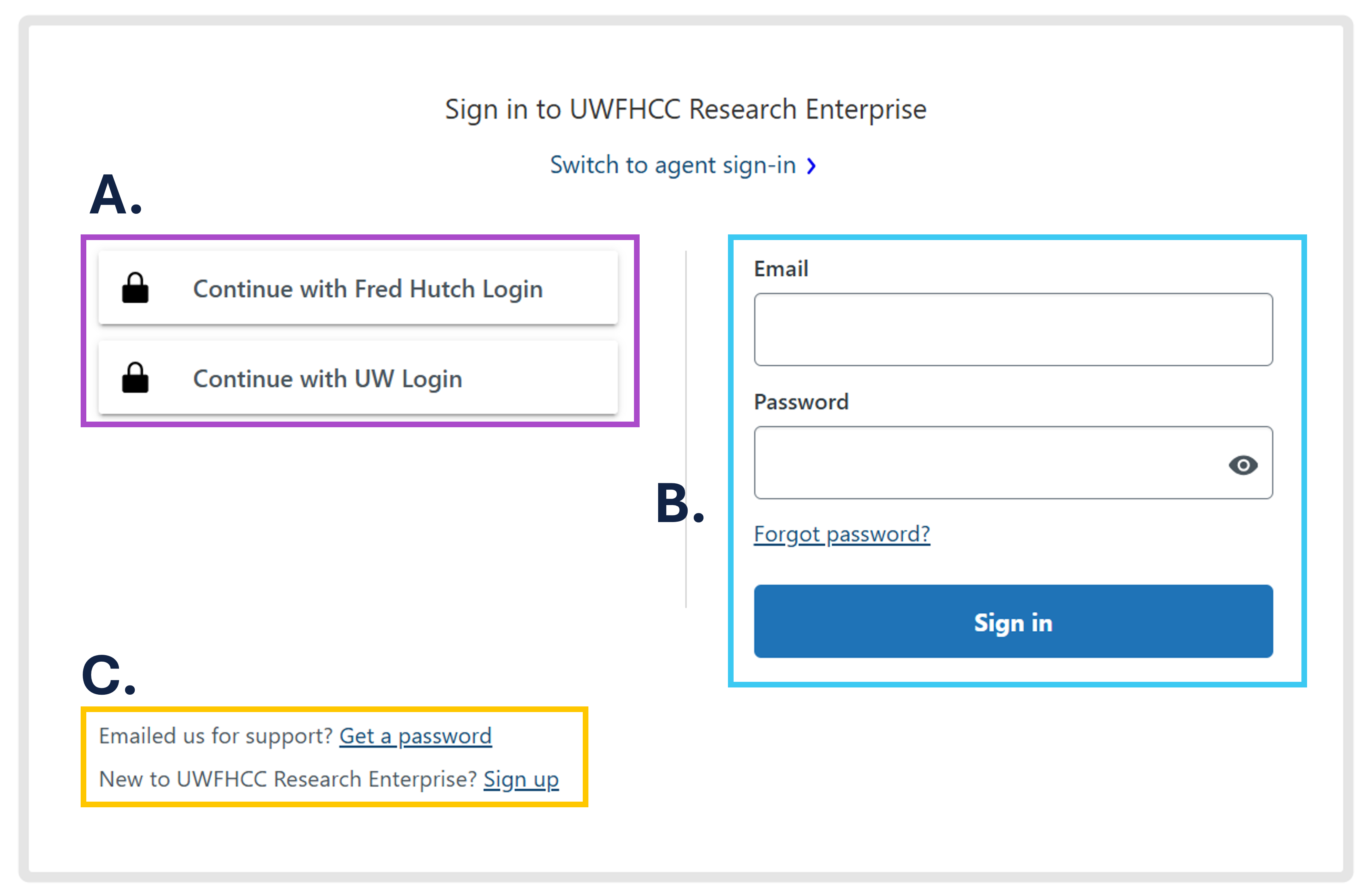
A. Use the left side of the login screen to sign in to Zendesk using Single Sign-On. Use the email address you received the message at.
B. If you do not have a UW or FH email, log in using the email you received the message at
C. If you have not created a Zendesk account for that email, create an account using the Sign Up hyperlink located near the bottom of the sign-in page.
2. Once you log in, the file will automatically download if it is a document or will be shown if it is an image.
SendSafely Attachments
- Click on the hyperlink for the secure attachment/s.

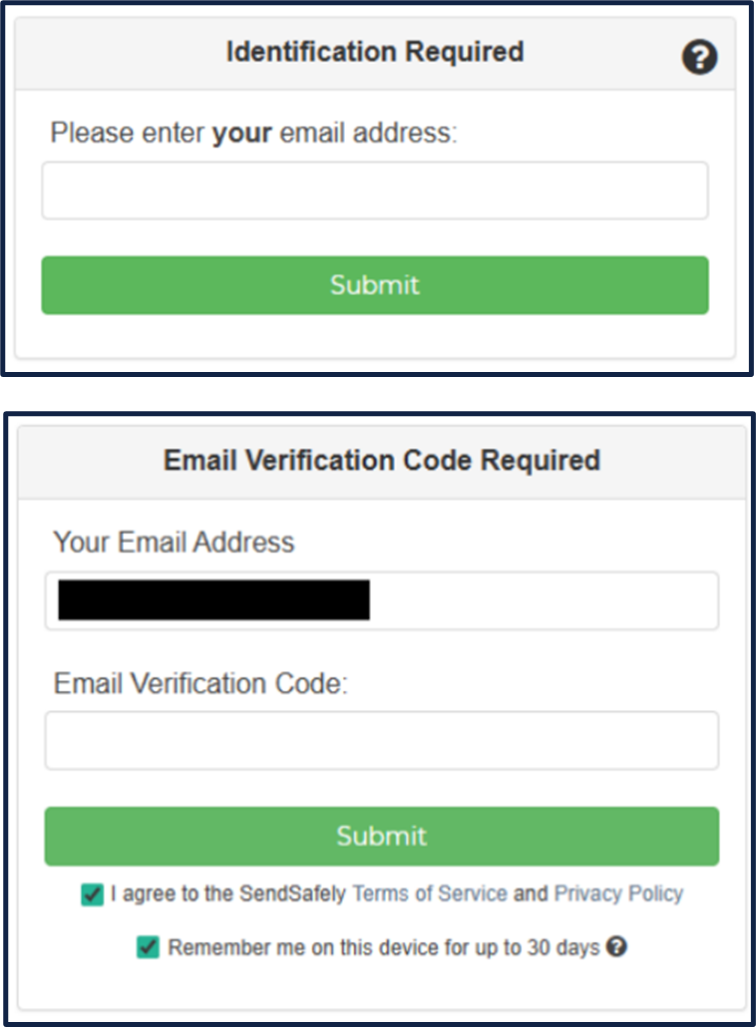
2. Enter your email address in the Identification Required prompt.
3. Retrieve the verification code from your email and enter it into the Email Verification Code box. You will need to agree to the Terms of Service to access the file.
NOTE: Additionally, you can have SendSafely remember your browser to allow for easier file access for 30 days.
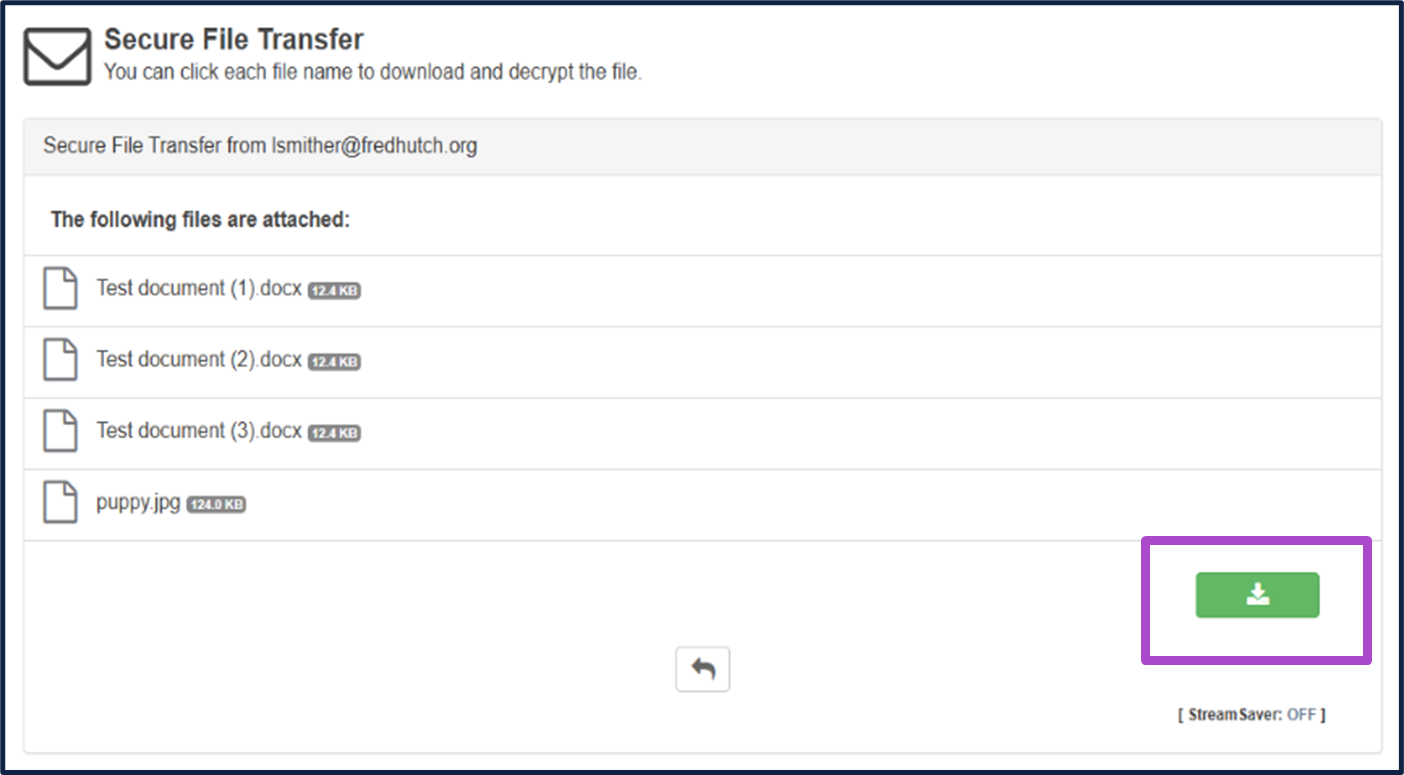
4. Once verified, you will be able to access each attached file.
5. Click the green Download Button to download the files to your computer.
View the above information in a PDF: Zendesk Attachment Access